
Free Electric Piano Loops for FL Studio: WAV + MIDI Pack
Form a band online, promote your music, buy custom beats, sound parts, and share your Beat or Track as a Royalty Free loop with us. Collaborate to make beats online with the best loop makers from around the world on the Forum for musicians and beat makers. Keep up to date with Music News and learn from FL Studio Video Tutorials and the articles on the Blog. Free DAW Music Software downloads, VST and Instrument Packs for FL Studio, Pro Tools, Logic, Ableton, and how to use the most popular free DAW Software, Fruity Loop Plugins, MIDIs and more.
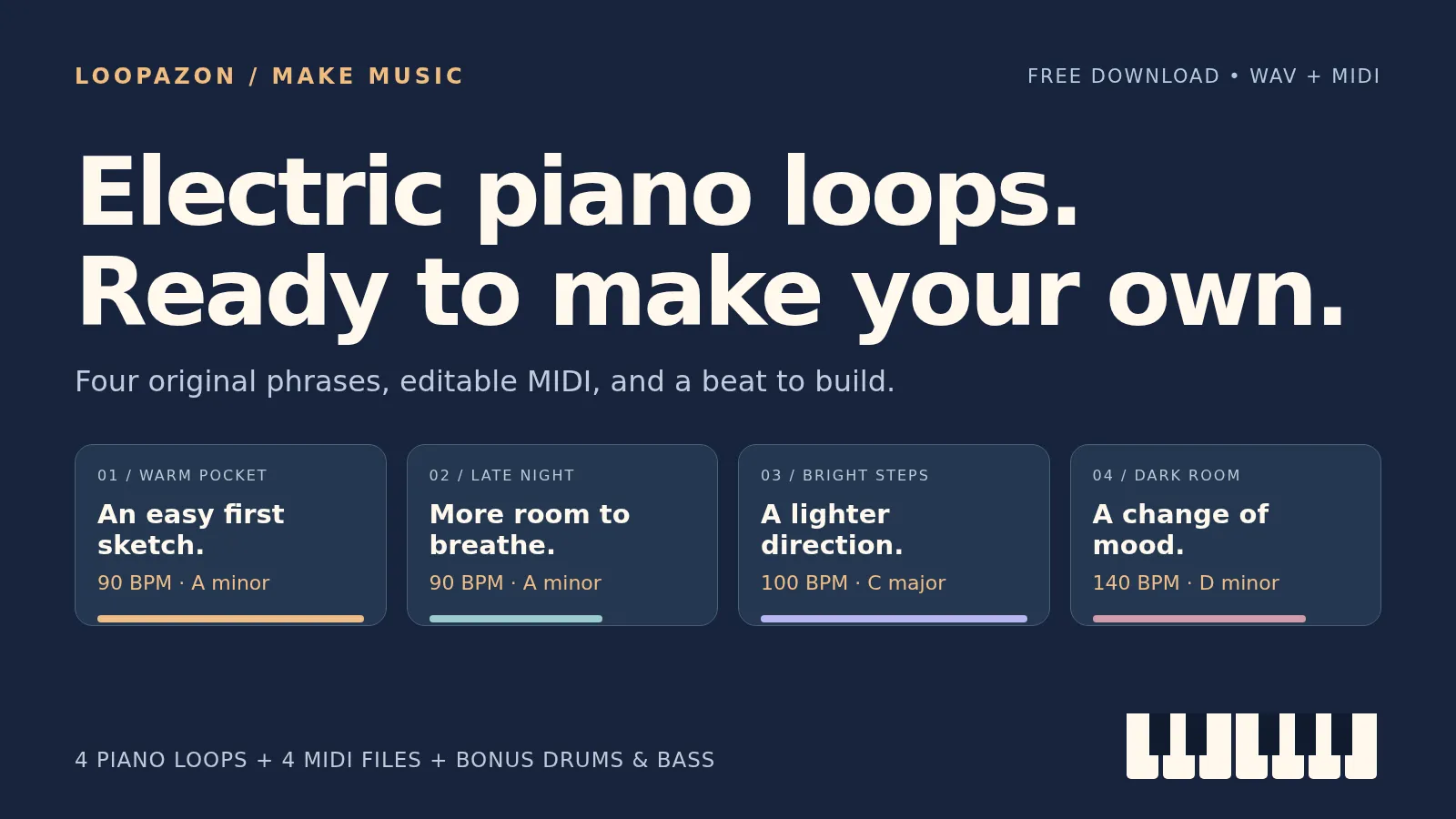
A good piano loop gives you a musical idea to build around. This free Loopazon electric-piano pack includes four original WAV loops, four matching MIDI files, and bonus drums and bass. Listen below, choose a phrase, and use the walkthrough to start a beat in FL Studio or Loopazon’s browser editor.
Download the free electric-piano WAV + MIDI pack · About 12 MB · ZIP file · No email required
The WAVs have an original synthesized, tine-style electric-piano tone. They are four bars long in 4/4, supplied as stereo 48 kHz, 24-bit audio. The MIDI files let you change the notes and play a different instrument. You can use these original files in personal and commercial finished projects under the included license; redistributing or reselling the standalone pack is excluded.
Listen to the four piano loops
Every phrase has its own WAV and MIDI version. The first two share a tempo and chord progression, making them useful as alternate sections of the same beat. The other two take the harmony in a different direction.
1. Warm Pocket — 90 BPM, A minor
A warm, gently syncopated chord part with space between its attacks. Start here to build the three-track beat demonstrated later in this guide.
Download Warm Pocket WAV · Download matching MIDI
2. Late Night — 90 BPM, A minor
A sparser alternative over the same Am7–Fmaj7–Cmaj7–G6 progression. Try it for a quieter verse, then bring Warm Pocket back for a fuller section.
Download Late Night WAV · Download matching MIDI
3. Bright Steps — 100 BPM, C major
A lighter phrase moving through Cmaj7–Am7–Dm7–G7. Its four-bar cycle lasts 9.6 seconds. Build a new bass part around C, A, D, and G as the chords change.
Download Bright Steps WAV · Download matching MIDI
4. Dark Room — 140 BPM, D minor
A darker Dm9–B♭maj7–Gm7–A7 progression. The C♯ in the final A7 chord is intentional: it gives the return to D minor a stronger pull. Keep that note in mind when writing a melody over the fourth bar.
Download Dark Room WAV · Download matching MIDI
What is in the download?
| Files | Contents | Best use |
|---|---|---|
| 4 piano WAVs | Four-bar electric-piano audio loops | Arrange with the exact sound heard above |
| 4 MIDI files | Matching notes, timing, and velocities | Edit the part or choose your own instrument |
| 2 bonus WAVs | 90 BPM pocket drums and A-minor bass | Build a beat with Warm Pocket or Late Night |
| README, license, manifest | Usage notes, permission terms, and file details | Keep the pack information with your project |
This is a loop and MIDI download. It does not install a piano plugin or supply an FL Studio project. The audio is original synthesis, rather than a sampled acoustic grand piano or a recording of a particular electric-piano model.
WAV or MIDI: which should you use?
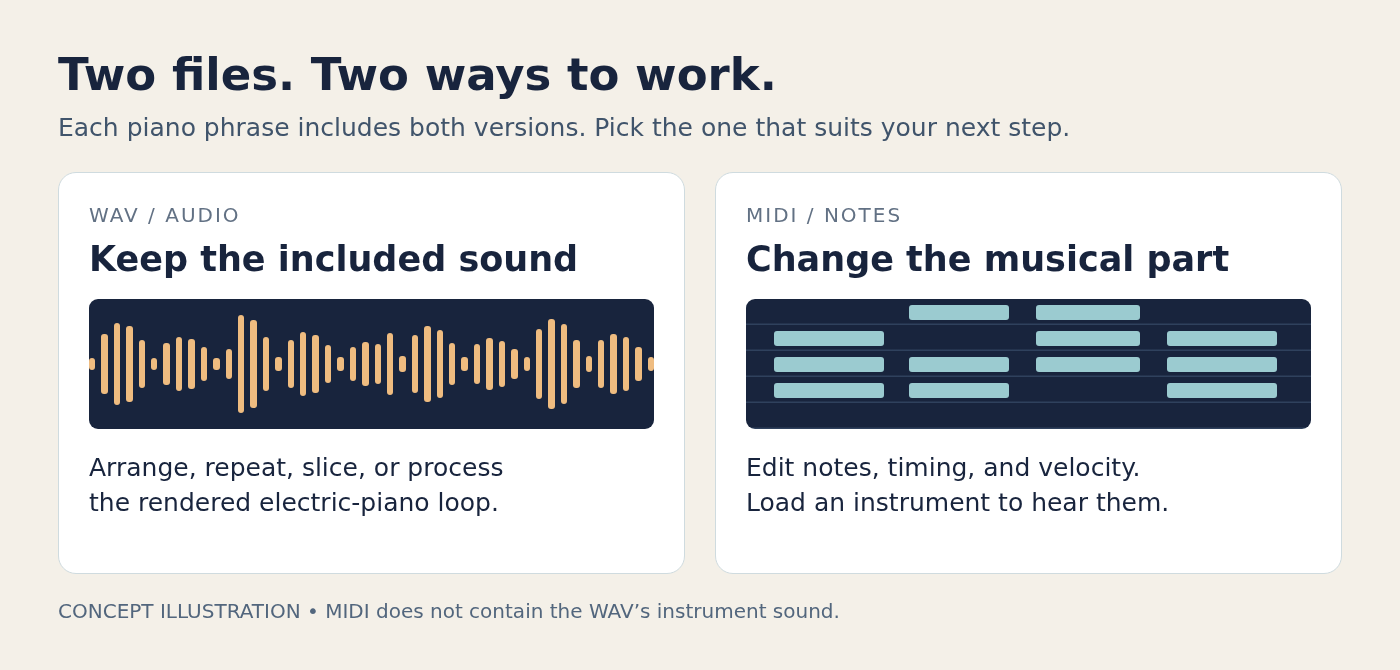
Choose WAV for a quick arrangement. Drop the audio into a track, repeat it, and add drums. You can still slice it, adjust its level, or add effects. Use the WAV when you want the tone from these previews.
Choose MIDI to change the phrase. You can move notes, shorten chords, adjust velocities, or play the part through another instrument. MIDI carries no recorded piano sound, so a Rhodes preset, a soft synth, and an acoustic-piano preset will each sound different. Load one version first; playing the WAV and MIDI together can unintentionally double the part.
How to use the piano WAVs in FL Studio
- Extract the ZIP. Keep the
loops,midi, andbonusfolders together somewhere you can find them again. - Set the project tempo. For Warm Pocket, start at 90 BPM. The tempo is also in the filename.
- Drag the WAV into the Playlist. Line its start up with bar 1 and check that the end reaches bar 5. That is one four-bar cycle.
- Add the matching bonus files. Put the 90 BPM drums and bass on separate Playlist lanes, also starting at bar 1. Listen to the three parts together before adding more layers.
- Build a second section. Repeat the drums and bass, then use Late Night instead of Warm Pocket for the next four bars. Both piano parts follow the same harmony.
Start at the file’s original tempo so you can hear it as intended. If you later change the project BPM, configure the audio clip’s stretching behavior and check that it still covers four bars. For the illustrated Playlist, tempo, and export walkthrough, see how to use free loops in FL Studio.
How to import the piano MIDI into FL Studio
Use an empty pattern and import into the Piano roll of the instrument you want to hear. FL Keys is one option: Image-Line documents a Rhodes sample set alongside its default Grand Piano. You can also use another instrument you already have.
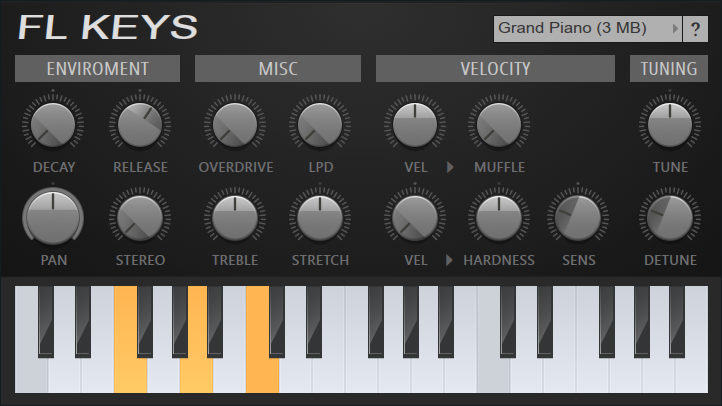
- Set the BPM and add an instrument. Start with 90 BPM for Warm Pocket, then add FL Keys or your preferred instrument to the Channel Rack. Choose its sound before playing the pattern.
- Open that instrument’s empty Piano roll. From the Piano roll menu, select File → Import MIDI file and choose
01-warm-pocket-90bpm-am.mid. - Import the notes. Leave Which tracks to import? at All tracks and ensure MIDI channel 1 is selected. Leave Blend with existing data off for this empty pattern. Leave Realign events off to preserve the file’s timing. Accept the import.
- Play the pattern and verify the tempo. Set or confirm 90 BPM manually. Place the pattern in the Playlist when you are ready to arrange it.
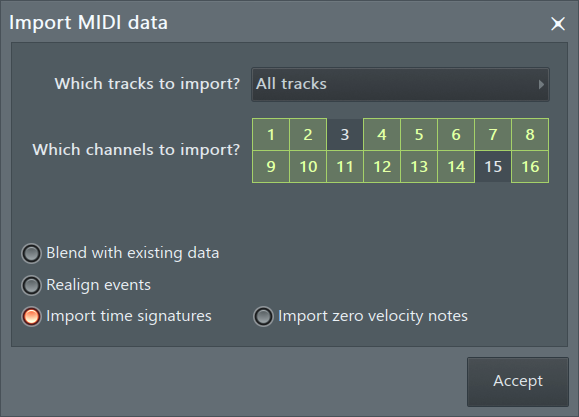
The Piano roll menu documentation confirms this note-import route. These instructions were checked against Image-Line’s documentation; the worked audio example below was made in Loopazon’s browser editor.
For a first edit, shorten a few upper notes or reduce their velocities and listen to the change. To move the whole A-minor phrase up to B minor, select every note and transpose it up two semitones. Transpose a companion bass part too so the harmony stays aligned.
Make a quick electric-piano beat in your browser
You can try the audio files without opening FL Studio. This example uses Warm Pocket, the bonus drums, and the bonus bass in the Loopazon audio editor.
- Download the pack and open a fresh editor project. Set the BPM to 90 before importing.
- Open Audio Files and upload
01-warm-pocket-90bpm-am.wav,05-pocket-drums-90bpm.wav, and06-round-bass-90bpm-am.wav. - Drag the piano onto the first track at the beginning of the timeline. Use + Add track for the drums and bass, and align all three starts. Each source loop lasts about 10.67 seconds.
- Press Play and balance the parts. This example uses about 70% piano, 60% drums, and 70% bass on the track volume sliders.
- Use Save project to keep the editable arrangement and Download Mix to export the audio.
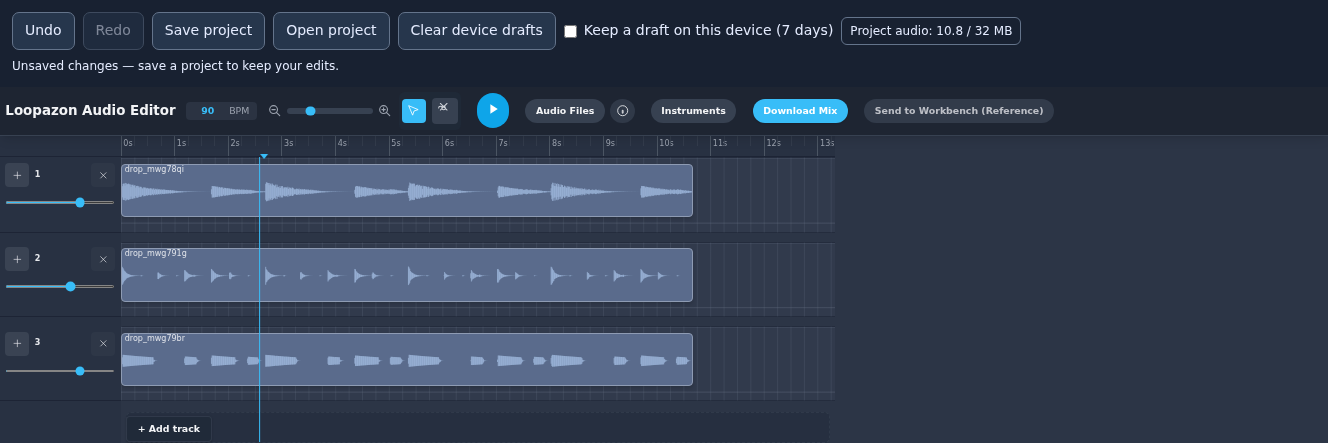
Download the finished example WAV. This is a short beat sketch exported from the browser editor. The export includes a small ending tail; use the pack’s original four-bar files when you want to repeat the source loops.
Choose a bass line that follows the chords
A shared key and BPM help narrow your choices, but the chord changes also need to agree. Warm Pocket and Late Night change chords once per bar:
| Bar | Piano chord | Bonus bass root |
|---|---|---|
| 1 | Am7 | A |
| 2 | Fmaj7 | F |
| 3 | Cmaj7 | C |
| 4 | G6 | G |
The bonus bass follows those roots. Bright Steps and Dark Room have different progressions, so create a suitable bass part for them instead of assuming the same file will fit. If the mix sounds crowded, try quieter piano low notes in the MIDI version before turning every instrument up.
Common questions
Why is the MIDI silent?
MIDI needs an instrument to produce sound. Check that you imported into the Piano roll of an instrument channel, that the notes are present, and that the channel is enabled. Confirm the pattern plays before troubleshooting a longer arrangement.
Why does the MIDI sound different from the preview?
The preview uses the pack’s synthesized electric-piano voice. Your MIDI instrument supplies its own tone, response to velocity, and note releases. Use the WAV for the included sound, or treat the MIDI as a starting point for your own version.
Can I use the pack outside FL Studio?
Yes. The WAVs and standard .mid files work in software that supports those formats. This pack does not require a specific third-party piano plugin. The browser example uses the WAVs.
Can I release a song using these loops?
The pack’s license permits personal and commercial finished music projects on a nonexclusive basis. Other producers can use the same sounds. Keep the license with your project and do not resell or redistribute the standalone pack.
Where can I find more piano sounds?
Browse Loopazon’s piano loops and Rhodes piano loops, checking each upload’s details and usage terms. To turn one of these phrases into a different rhythm, follow the sample-chopping tutorial. For a first session, download Warm Pocket, add its two bonus tracks, and make one four-bar idea you want to hear again.