
How to Turn Humming Into a Beat With Loopazon AI
Form a band online, promote your music, buy custom beats, sound parts, and share your Beat or Track as a Royalty Free loop with us. Collaborate to make beats online with the best loop makers from around the world on the Forum for musicians and beat makers. Keep up to date with Music News and learn from FL Studio Video Tutorials and the articles on the Blog. Free DAW Music Software downloads, VST and Instrument Packs for FL Studio, Pro Tools, Logic, Ableton, and how to use the most popular free DAW Software, Fruity Loop Plugins, MIDIs and more.
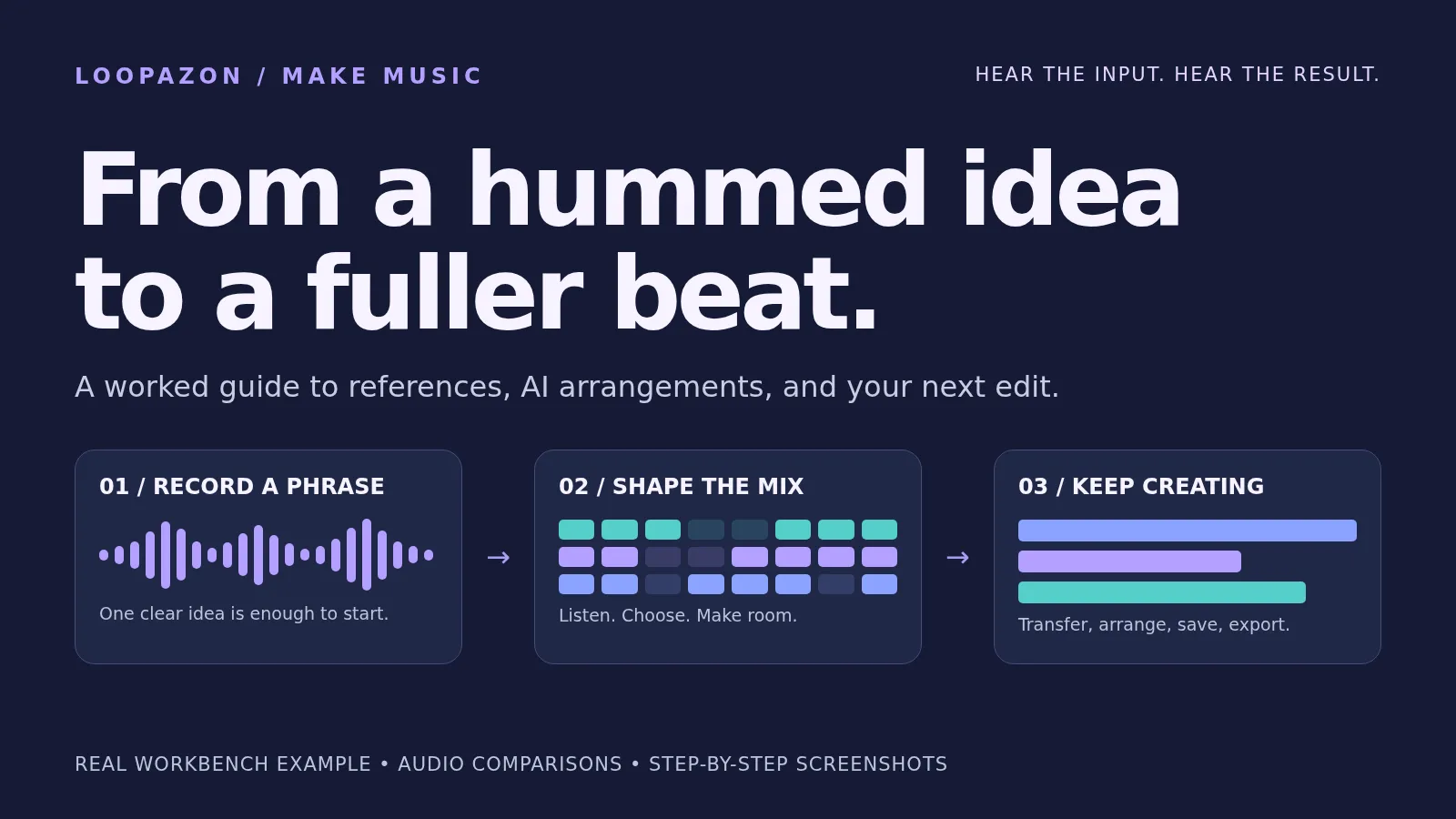
You do not need a finished song to start making music. A short hummed phrase can give you a rhythm, a mood, or a melodic shape to build around.
This guide shows how to use Loopazon's Hum tool to find a musical starting point, shape the Workbench result, and finish a simple beat in the browser editor. You can hear the actual input and output below, then follow the same decisions with your own idea.
What to expect: the Workbench analyzes your reference and arranges compatible sounds from its catalogue. It does not promise a note-for-note instrumental version of your voice. In our test, it suggested harmony and bass but left two roles empty. We kept the useful parts and added a drum loop ourselves.
Listen: from a short reference to a beat
Before · The recording sent through Hum
Download the captured reference · WAV
After · Workbench harmony and bass, with a drum loop added in the editor
Download the finished example · WAV
How this example was made: we synthesized an original humming-style phrase and fed it into the live Hum recorder through a virtual microphone. It is not a human vocal performance or a cloned voice. The Workbench audio is a real result; the final beat is an actual browser-editor export. The original reference is not audible in that final mix. See the example notes.
1. Give the tool one clear idea
Start with a phrase you can repeat comfortably. Hum one melody, sing a short wordless line, or beatbox a simple rhythm. You are giving the tool a starting reference, so a clear idea is more useful than an elaborate performance.
- Keep a steady pulse. Count yourself in and keep the phrase moving at roughly the same speed.
- Leave small gaps. A few rests help separate phrases and make their rhythm easier to hear.
- Reduce competing sound. Stop music playing through your speakers and use headphones if you need to hear a backing reference.
- Use a comfortable level. Move back if the recording distorts; move closer if the voice is buried in room noise.
Our source phrase uses a few notes from A minor, with rises, falls, and pauses. You do not need to know the note names to try Hum. If you want to hear the prepared phrase without the recording's surrounding silence, download the eight-second synthetic practice reference.
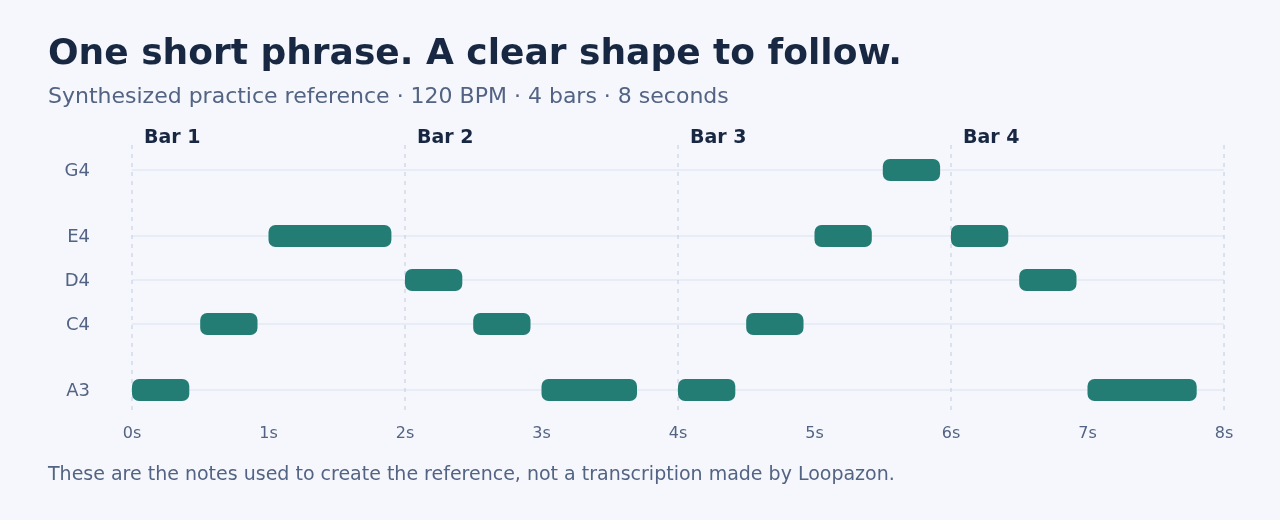
The prepared phrase before it was played into the recorder. This illustrates the source we composed; it is not a transcription produced by the Hum tool.
2. Record your reference in Loopazon
- Open the Loopazon AI Audio Editor and find the Reference Inputs section of the Workbench.
- Choose Hum, then click Start recording.
- Allow microphone access when your browser asks. Wait for the three-count countdown before performing.
- Hum your phrase. The recording button changes to Stop with an elapsed-time counter.
- Click Stop. Analysis and arrangement begin automatically; wait for the Workbench's status message before making another attempt.
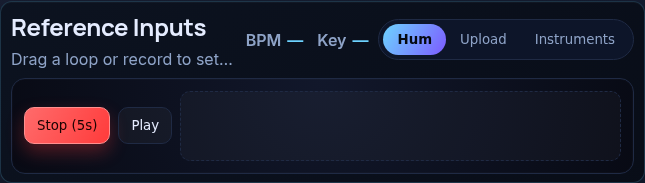
The Hum controls during the live test. The microphone input for this demonstration was the clearly labelled synthetic reference above.
If you already have a voice memo, choose Upload → Choose or drop audio in the Workbench instead. Uploading a reference also starts analysis, but it is a separate input route and may produce a different selection. To place a recording directly on a timeline without generating an accompaniment, use the editor's Audio Files → Upload Audio.
3. Read the result before judging it
The Workbench organizes sounds into roles such as Groove, Melody, Harmony, and Low End. Press Play All to audition the suggested combination. Listen for a useful direction: a chord colour, a bass rhythm, or a contrast that makes you want to keep working.
Our captured result reported 59.7 BPM and Am. It populated Harmony and Low End, while Groove and Melody stayed empty. The status said “Arrangement partial — some roles missing or risky.” Here, that describes the tool's musical-fit checks; it is not a finished four-part arrangement.
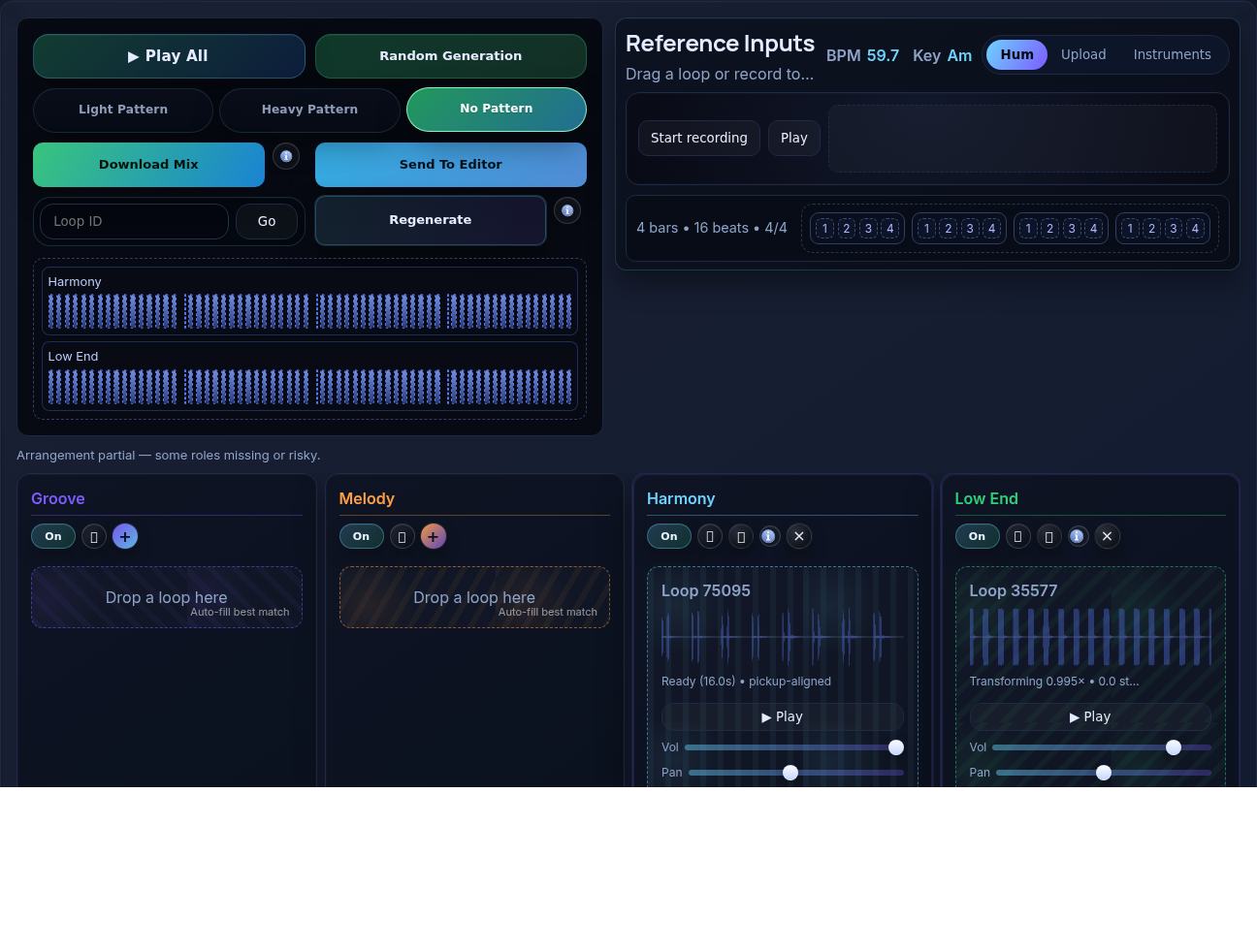
The prepared phrase was written against a 120 BPM pulse, so this estimate is close to a half-time reading. A sparse melody can leave the beat ambiguous. Treat the displayed tempo and key as information to check against what you hear, rather than proof of the only correct interpretation.
A partial result still gives you choices. You can record a clearer reference, try another generation, or keep the parts that work and supply the missing rhythm yourself. We chose the last option for this example.
The Workbench identified the selected parts as Harmony: Loop 75095 and Low End: Loop 35577. These are the source identifiers reported for this run, not promises that another recording will return the same sounds.
4. Compare the groove without replacing the sounds
Before searching for different loops, try changing when the current parts play. The Workbench's No Pattern, Light Pattern, and Heavy Pattern controls change the rhythmic treatment of the selected sounds.
No Pattern · Our two selected parts playing through the cycle
Download the No Pattern comparison · WAV
Light Pattern · The same selection with a different rhythmic shape
Both examples were exported with the Workbench's Download Mix button. Each lasts 16.08 seconds, representing one four-bar cycle at the detected tempo. We kept Light Pattern for the next step.
Listen for whether the new gaps help or interrupt the phrase. A more noticeable pattern is not automatically a better one. Try Heavy Pattern if you want a stronger chopped effect, then return to No Pattern to hear what you changed.
When you find a part you want to retain, use its lock control before choosing Regenerate. Locked parts stay while the tool looks for alternatives for unlocked parts; existing patterns are preserved. Change one decision at a time so you can tell what improved the idea.
5. Add the missing drums on a separate track
Our Workbench result needed a rhythm section. We made a simple original drum loop to match its 16.08-second cycle: kick, snare, and eighth-note hats. Keeping it separate lets us balance it against the AI-assisted accompaniment.
| Download for the exercise | What it contains |
|---|---|
| Light Pattern Workbench mix · WAV | Combined harmony and bass from the actual result · 16.08 seconds |
| Matching pocket drums · WAV | Original programmed kick, snare, and hats · 16.08 seconds |
For this two-file exercise, start a fresh editor session, for example in a new private browser window, and check that the timeline is empty. Save any existing work first. This makes it easy to hear just the two files used in the demonstration.
- Set the timeline editor to 60 BPM before importing. Leave that value unchanged during this exercise.
- Open Audio Files → Upload Audio and import the Light Pattern WAV.
- Drag it onto the first audio track at the beginning of the timeline.
- Import the matching drum WAV. Click + Add track and drag the drums onto that second track at the same starting point.
- Keep both clips at their original 16.08-second length. Play them together, then adjust the two track levels to taste.
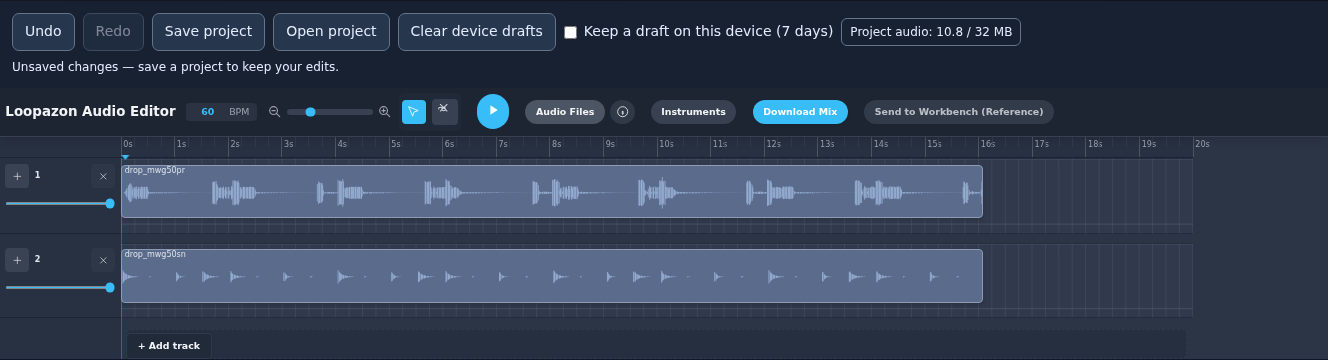
Actual editor session used for the finished audio example. The two files already match in duration, so this exercise uses their time in seconds for alignment.
Why 60 rather than 59.7? The current timeline tempo field accepts whole numbers. The two supplied files are already matched, so no tempo conversion is needed. Keep them at their original lengths and do not shorten them to a 16-second boundary. For longer repetitions, use starts at 0, 16.08, 32.16, and 48.24 seconds, or use a desktop DAW that supports the exact tempo.
For your own result, choose a drum loop that fits its pulse and phrase length. The matching loop here was prepared for this specific example. Our drum-and-shaker tutorial explains how to judge rhythmic layers; the FL Studio guide covers fitting loops to a project tempo.
6. Save the project and export the beat
Check the mix with both tracks playing. If the drums hide the harmony, lower them. If the bass overwhelms the kick, reduce the Workbench mix slightly. The supplied drum loop starts at a conservative level, and our example uses the editor's default track levels without extra effects.
- Click Save project to download an editable .loopazon file.
- Keep that file so you can restore your work with Open project.
- Click the timeline editor's Download Mix to export the combined beat as a WAV.
- Listen to the downloaded file, including its beginning and ending. Keep the project and source WAVs alongside it.
The Workbench also has a Send To Editor button for transferring its combined mix. Check what is already playing in the timeline when using it: Workbench source rows may already be present. Avoid layering the combined mix over the same audible source parts unless you intend to double them. The fresh two-file session above is the workflow used for our final example.
Common problems when turning humming into music
| Problem | What to try |
|---|---|
| Recording will not start. | Check the site's microphone permission, the selected microphone, and any hardware mute switch. Chrome users can follow Google's microphone instructions. |
| The estimated tempo seems half or double your intended speed. | Listen for how the phrase divides into beats. Try a clearer, more regular reference, or keep a useful result and arrange it at the pulse you hear. |
| Some Workbench roles remain empty. | Read the status message. Try another reference or generation, or add your own compatible part as we did with the drums. |
| The result does not play the exact tune you hummed. | The reference guides sound selection and arrangement; it is not a promise of note transcription. For an exact melody, record it as an audio part or program its notes in a DAW. |
| The mix becomes louder or muddy after transfer. | Check for duplicate parts, including Workbench source rows playing alongside a combined mix. |
| A downloaded loop stops matching after a tempo change. | Return to the original setup or reimport into a project with the intended tempo. Keep this exercise's two files at 16.08 seconds each. |
Questions about the example and your own music
Will my humming be audible in the generated mix?
In this workflow it serves as the reference; the Workbench mix contains the selected catalogue sounds. If you want your voice in the finished track, import your own recording onto a separate editor track and check its timing and harmony against the backing.
Can I release a song made this way?
Check the permissions for the sounds you use. The Loopazon Free Loops licence permits non-exclusive personal and commercial use of its catalogue loops and requires credit where a listing requests it. An AI-assisted arrangement does not give you exclusive ownership of the underlying loops.
The tutorial asset licence covers the original synthetic reference and matching drums we created. It does not grant new rights to the Workbench's catalogue sources. The Workbench examples are supplied for listening and practice. Before releasing your own result, identify its source sounds and permissions; replace any sounds you cannot clear with material you have permission to use.
What should I change next?
Keep the part that made you want to continue. Write a new melody, choose a different drum feel, or arrange a quieter opening before the full beat enters. Save a second version and compare it with the first at a similar listening level.
For more starting points—including piano, pads, catalogue loops, and selected instruments—read the illustrated guide to using Loopazon. A small reference can start the process; listening and editing turn it into a track that reflects your choices.